
This article may contain affiliate links. We may earn a commission at no additional cost to you; this does not determine our editorial conclusions.
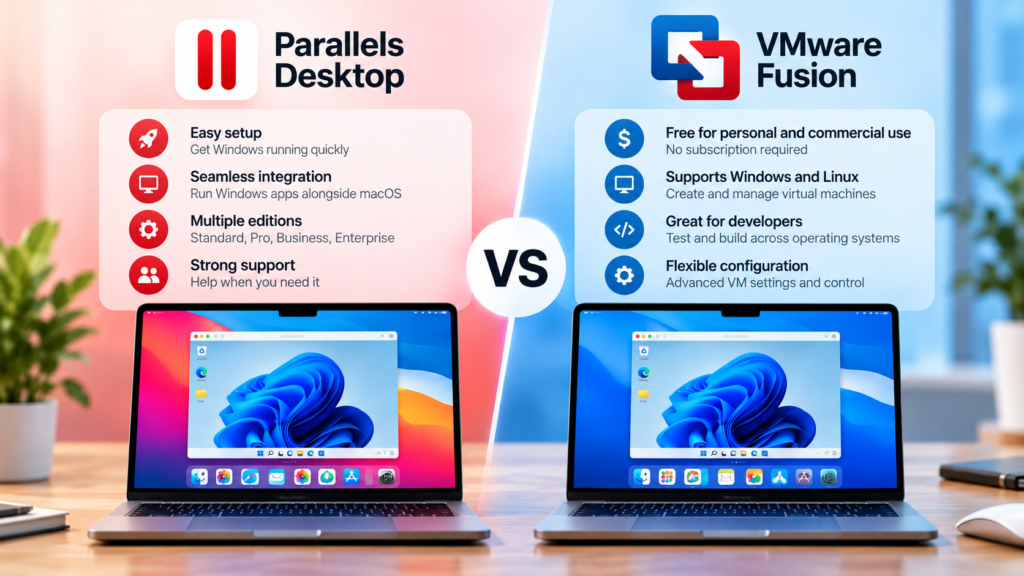
Parallels Desktop vs VMware Fusion is an important comparison for Mac users who need to run Windows applications without switching to a separate computer. Both virtualization platforms let you create virtual machines and run additional operating systems on macOS, but they differ in ease of use, Windows integration, compatibility, and pricing.
For many users, the decision is no longer simply about which software can run Windows. VMware Fusion offers a free virtualization option, while Parallels Desktop focuses on making Windows applications feel more integrated with the everyday Mac experience. That difference matters whether you’re using Windows-only business software, testing applications, or maintaining access to programs that aren’t available on macOS.
Choosing the right platform also depends on your Mac. Apple Silicon and Intel-based Macs have different virtualization capabilities, and not every Windows application will work equally well on both architectures. A solution that works perfectly for routine office tasks may be less suitable for specialized software, hardware-dependent applications, or demanding development environments.
This Parallels Desktop vs VMware Fusion comparison examines the practical differences between the two platforms, including pricing, setup, Windows integration, performance, compatibility, and the types of users each product is best suited for.
Parallels Desktop vs VMware Fusion at a Glance
Both Parallels Desktop and VMware Fusion allow Mac users to run Windows in a virtual machine rather than installing it as the computer’s primary operating system. You can continue working in macOS while accessing Windows applications, files, and tools when needed.
However, the two products approach virtualization differently. Parallels Desktop emphasizes convenience and integration with macOS, while VMware Fusion provides a capable virtualization environment without the cost of a software subscription.
| Feature | Parallels Desktop | VMware Fusion |
|---|---|---|
| Starting price | Paid; varies by edition and license | Free |
| Free option | Free trial | Free for personal and commercial use |
| Apple Silicon support | Yes | Yes |
| Intel Mac support | Yes, on compatible Macs | Yes, on compatible Macs |
| Windows 11 on Arm | Yes | Yes |
| Run Windows alongside macOS | Yes | Yes |
| Windows application integration | Strong emphasis on seamless integration | More traditional virtual machine experience |
| Linux virtual machines | Yes | Yes |
| Advanced developer features | Available, particularly in Pro | Available |
| Official technical support | Depends on edition and license | Community and documentation resources |
| Best suited for | Everyday Windows users who value convenience | Budget-conscious and technically comfortable users |
The pricing difference deserves particular attention. VMware Fusion became free for personal, educational, and commercial use, making it an attractive option for people who need virtualization without paying for additional software. However, free users generally rely on documentation and community resources rather than dedicated technical support.
Parallels Desktop offers different editions for individual users, developers, and businesses. Its Standard edition is designed for everyday applications, while Pro provides additional resources and development tools. Users can compare the available editions and licensing arrangements on the official Parallels Desktop pricing page.
It’s also important to remember that virtualization software and Windows licensing are separate considerations. Purchasing Parallels Desktop does not automatically include a Windows license, so users should account for Windows activation requirements when estimating the total cost.
Parallels Desktop vs VMware Fusion: Ease of Use
Ease of use can make a substantial difference when Windows is something you need regularly rather than an operating system you occasionally experiment with.
For example, imagine a small-business owner who uses a MacBook for email, meetings, and document management but still depends on a Windows-only accounting application. They don’t necessarily want to learn how virtual machines work. They simply want to open the accounting software, complete their work, and return to their Mac applications without interrupting their workflow.
This is where the differences between Parallels Desktop and VMware Fusion become more noticeable.
Using Parallels Desktop
Parallels Desktop is designed to make the transition between macOS and Windows feel natural.
Its setup process guides users through creating a virtual machine, and supported Windows installations can be configured with relatively little manual work. Once Windows is running, users can open applications alongside their Mac software instead of treating Windows as a completely separate desktop.
One of its most recognizable features is Coherence Mode, which allows Windows applications to appear alongside Mac applications without requiring users to keep the full Windows desktop visible.
This can be useful when someone frequently switches between operating systems throughout the day.
A business analyst, for example, might work in a Mac browser while using a Windows-specific reporting tool. Rather than repeatedly switching between two full desktops, the analyst can keep both applications accessible in the same workspace.
Parallels also provides options for sharing files, folders, and other resources between the two environments. These features reduce the need to manually transfer documents whenever work moves between macOS and Windows.
The benefit isn’t necessarily that Parallels can run applications that no other virtualization platform can. Its main appeal is how conveniently users can access supported Windows applications as part of their existing Mac workflow.
This kind of convenience matters when businesses rely on several applications to complete everyday tasks. Choosing software that fits naturally into existing processes can reduce unnecessary steps, much like selecting the right business software for a team’s workflow requires understanding how people actually work.
Using VMware Fusion
VMware Fusion takes a more traditional approach to virtualization.
Users create and manage virtual machines that operate within macOS. They can install supported operating systems, allocate resources, configure virtual hardware, and run Windows applications inside the virtual machine.
For someone familiar with virtual machines, this approach can be perfectly comfortable.
A developer testing software across different operating systems may prefer keeping Windows clearly separated from macOS. The same applies to users who need an isolated environment for testing configurations or experimenting with software.
VMware Fusion is not necessarily difficult to use, but users may need to pay more attention to operating system installation, virtual machine configuration, and compatibility requirements.
For example, Apple Silicon Macs require Arm-based guest operating systems. VMware Fusion cannot run an x86 version of Windows as a virtual machine on Apple Silicon hardware, although Windows 11 on Arm can run some x86 applications through its own compatibility mechanisms.
The official VMware Fusion documentation provides information about installation, virtual machine management, supported configurations, and technical requirements.
This distinction matters because a user moving from an older Intel Mac may assume that a Windows virtual machine will behave exactly the same way on a newer MacBook with an M-series processor.
That assumption can lead to problems with specialized applications, drivers, or operating system requirements.
Which Is Easier for Everyday Mac Users?
For someone who wants Windows applications to feel like part of their normal Mac experience, Parallels Desktop generally offers the more convenient workflow.
Its focus on guided installation and desktop integration makes it particularly attractive to people who use Windows for work but don’t want to spend much time managing virtualization settings.
VMware Fusion remains a practical alternative, especially when cost matters more than integration or when the user is already comfortable managing virtual machines.
The choice ultimately depends on how Windows fits into your daily routine. If you open Windows applications several times a day, small improvements in convenience can become valuable. If you only need a Windows virtual machine occasionally, VMware Fusion’s free availability may be more than sufficient.
The same principle applies when evaluating productivity tools in general. A program’s feature list matters, but its usefulness ultimately depends on whether it supports the tasks people perform regularly. This is why choosing applications around actual user needs is often more effective than selecting software based on features alone.
Parallels Desktop vs VMware Fusion: Performance and Compatibility
Performance is one of the biggest considerations when choosing virtualization software, but it is also one of the easiest areas to misunderstand. A virtual machine shares resources with macOS, including processor capacity, memory, and storage. How smoothly Windows runs depends on the Mac’s hardware, the applications being used, and how the virtual machine is configured.
Both Parallels Desktop and VMware Fusion can handle common Windows tasks, but neither guarantees that every application will perform exactly as it would on a dedicated Windows computer.
Performance on Apple Silicon Macs
Apple’s M-series processors have made modern Macs capable of handling demanding workloads, but they also introduce an important compatibility consideration.
Apple Silicon uses Arm architecture rather than the x86 architecture found in traditional Intel and AMD processors. As a result, running Windows on an M-series Mac typically means using Windows 11 on Arm.
Parallels Desktop supports Windows 11 on Arm and provides a relatively straightforward installation experience. Users can run many familiar Windows applications, including office software, business tools, browsers, and supported development applications.
VMware Fusion also supports Windows 11 on Arm, although its installation and configuration process may require more manual involvement.
For everyday tasks such as spreadsheets, document editing, browser-based applications, and basic business software, both platforms can provide a usable experience when the Mac has sufficient resources.
However, compatibility becomes more complicated when an application relies on specialized drivers, older hardware, or processor-specific features.
Windows 11 on Arm includes emulation capabilities that allow many traditional x86 and x64 applications to run, but this does not mean every Windows program will work. Applications that depend on unsupported kernel drivers, certain security systems, or specialized hardware may still encounter problems.
For example, an employee using a standard Windows accounting application may have no difficulty running it on an M-series Mac. Another employee using specialized engineering software with a dedicated USB security device may find that the application installs but cannot communicate with the required hardware.
Before choosing either platform, users should confirm that their essential applications work with Windows on Arm rather than assuming that Windows compatibility automatically means Apple Silicon compatibility.
Performance on Intel Macs
Intel-based Macs provide a different virtualization environment because their processors share the x86 architecture used by conventional Windows PCs.
This can make Intel Macs more suitable for certain older Windows applications and operating systems that cannot run as Arm virtual machines.
Both Parallels Desktop and VMware Fusion have supported Windows virtualization on Intel Macs, although compatibility depends on the specific Mac model, macOS version, virtualization software release, and guest operating system.
For users maintaining older business applications, this distinction can be important.
Consider a company that still relies on an older Windows application developed specifically for x86 systems. An Intel Mac may be able to run the application in a compatible Windows virtual machine, while a newer Apple Silicon Mac may require an alternative solution.
That does not mean Intel Macs are generally faster or better for virtualization. Newer Apple Silicon Macs can deliver excellent performance for supported workloads. The important difference is the operating system and application architecture each platform can support.
Memory, Storage, and Resource Management
Virtual machines need sufficient resources to run smoothly.
When Windows is running inside macOS, both operating systems consume memory and processing capacity. Opening several demanding applications in both environments can quickly increase resource usage.
For light office work, a modest virtual machine configuration may be adequate. More demanding workloads, such as compiling software, processing large datasets, or running multiple development tools, may benefit from additional memory and processor resources.
Parallels Desktop provides different resource limits depending on the edition. Users considering its Standard or Pro editions should check the available virtual machine memory and CPU allocation limits before purchasing.
VMware Fusion also allows users to configure virtual machine resources, although the practical limits depend on the host computer and supported configuration.
Allocating more resources does not automatically improve performance. Assigning too much memory or too many processor cores to Windows can leave macOS with insufficient resources, reducing overall responsiveness.
Storage is another consideration. A Windows virtual machine includes an operating system installation, applications, updates, and user files. Its virtual disk can grow substantially over time.
Users with limited internal storage should account for this before installing either platform, particularly if they plan to maintain multiple virtual machines.
Graphics and Gaming Performance
Neither Parallels Desktop nor VMware Fusion should be treated as a complete replacement for a dedicated Windows gaming PC.
Both provide virtualized graphics capabilities, but support for graphics APIs, hardware acceleration, and individual applications varies.
Parallels Desktop has features designed to support a range of Windows graphics applications and some games. However, performance and compatibility depend on the Mac hardware, Windows architecture, graphics requirements, and the specific title.
VMware Fusion also provides accelerated graphics functionality for supported virtual machines, but not every graphics-intensive Windows application will work correctly.
Games with demanding graphics requirements, unsupported DirectX features, or incompatible anti-cheat systems may fail to launch or perform poorly.
For someone who occasionally uses a lightweight Windows application with basic graphics, virtualization may be sufficient. For someone whose main purpose is running demanding Windows games, a dedicated Windows system or another compatible solution may be more appropriate.
Parallels Desktop vs VMware Fusion for Work and Business
For businesses, the choice between Parallels Desktop and VMware Fusion involves more than installation convenience or software cost. It also affects how employees access applications, how IT teams manage virtual machines, and how easily the solution fits into existing workflows.
A small company with a few Mac users may have very different requirements from a software development team managing multiple operating systems.
Everyday Office and Business Applications
Parallels Desktop is particularly appealing when employees need to use Windows applications regularly while continuing to work primarily in macOS.
Its desktop integration features can reduce the friction of moving between applications. Instead of treating Windows as a separate computer, users can access supported Windows software alongside their Mac applications.
This can be useful for accountants, consultants, administrators, and other professionals who rely on one or two Windows-specific programs.
Imagine a consulting company where most employees use MacBooks, but the finance department relies on a Windows-only reporting application. Installing Parallels Desktop could allow those employees to continue using their existing Macs without introducing separate Windows laptops solely for that application.
VMware Fusion can also support this arrangement. However, its more traditional virtual machine experience may be less convenient for employees who frequently switch between Mac and Windows applications.
For organizations where Windows is only needed occasionally, that difference may not justify paying for virtualization software.
Software Development and Testing
Developers often have different priorities.
Instead of simply opening a Windows application, they may need to test software across operating systems, maintain isolated development environments, or experiment with different configurations.
Both Parallels Desktop and VMware Fusion provide capabilities that support these workflows.
Parallels Desktop Pro includes features aimed at developers and advanced users, such as higher virtual machine resource allowances and additional development-oriented tools.
VMware Fusion offers a capable environment for creating and managing virtual machines without requiring a paid virtualization license.
For a developer who already understands virtual machine configuration, VMware Fusion’s free availability can be a meaningful advantage.
However, the operating system architecture remains an important limitation. On Apple Silicon, neither platform provides conventional x86 Windows virtualization. Developers who need to test applications on x86 Windows may still require separate compatible hardware or a remote environment.
Business Licensing and Support
The software’s purchase price is only one part of its total cost.
Parallels Desktop offers business-oriented licensing options intended for organizations that need centralized administration and deployment capabilities. These may be valuable when IT teams manage Windows access across multiple Mac computers.
VMware Fusion’s free licensing removes a direct software expense, but organizations should consider how they will handle installation, troubleshooting, updates, and user support.
For a small technical team, community documentation and internal expertise may be sufficient. For a larger organization with employees who depend on Windows applications every day, dedicated vendor support and management features may be more valuable.
The decision should reflect the cost of maintaining the environment, not simply the cost of obtaining the software.
Which Is Better for Business Use?
Parallels Desktop generally makes more sense when Windows is an essential part of employees’ daily work and convenience, support, and administrative capabilities are important.
VMware Fusion is attractive when organizations want to minimize licensing expenses and have the technical resources to manage virtual machines themselves.
Neither choice should be made without testing the applications employees actually need. A short compatibility test can reveal problems with software activation, drivers, performance, or connected devices before the organization commits to a wider rollout.
Parallels Desktop vs VMware Fusion: Which Should You Choose?
Choosing between Parallels Desktop vs VMware Fusion ultimately depends on how often you need Windows, which applications you use, and how much convenience matters to your workflow.
Both platforms can provide a practical way to run Windows on a Mac, but their strengths become clearer when you consider the type of user each is designed to serve.
Choose Parallels Desktop If You Want a Seamless Mac and Windows Experience
Parallels Desktop is a strong choice for people who regularly use Windows applications but prefer to keep macOS as their primary working environment.
Its main advantage is convenience. Features such as Coherence Mode, shared folders, and integration between Mac and Windows applications can make everyday work feel more natural.
This is particularly useful for professionals who rely on Windows-only software but spend most of their day using Mac applications.
For example, an accountant who needs a Windows reporting application alongside Mac-based email, spreadsheets, and communication tools may appreciate being able to move between programs without constantly switching desktops.
Parallels Desktop may also suit businesses that want a more guided setup experience and licensing options designed for managing multiple users.
The main trade-off is cost. Although its features can save time, users should consider whether those conveniences justify paying for software when a free alternative is available.
Choose VMware Fusion If You Want Free Virtualization
VMware Fusion makes sense for users who want to run Windows or Linux virtual machines without paying for the virtualization platform.
Its free availability is especially attractive to students, developers, IT professionals, and individuals who only need Windows occasionally.
For example, a web developer who needs to test a website in a Windows browser may not require the deeper desktop integration offered by Parallels Desktop. A separate Windows virtual machine could be perfectly adequate.
VMware Fusion can also appeal to users who prefer managing virtual machines directly and are comfortable adjusting operating system installations, memory allocations, storage settings, and other configurations.
The trade-off is that its workflow may feel less convenient for someone who simply wants to open a Windows application and continue working as though it were a native Mac program.
Consider Your Existing Applications Before Deciding
Before installing either platform, make a list of the Windows applications you actually need.
Check whether each application supports Windows 11 on Arm if you use an Apple Silicon Mac. Pay particular attention to specialized business applications, older software, hardware drivers, and programs that require specific graphics features.
It is also worth considering how often you will use Windows.
Someone who opens a Windows application every day may benefit considerably from Parallels Desktop’s integration features. Someone who launches a virtual machine once or twice a month may find VMware Fusion sufficient.
The better choice is the platform that runs your required applications reliably without adding unnecessary cost or complexity.
If Parallels Desktop fits your workflow, you can explore Parallels Desktop and its available editions to see which features match your needs.
Frequently Asked Questions
Is Parallels Desktop better than VMware Fusion?
Parallels Desktop is generally more convenient for Mac users who regularly run Windows applications alongside macOS. Its integration features and guided setup make it particularly appealing for everyday business and productivity tasks.
VMware Fusion is a strong alternative for users who want free virtualization and are comfortable managing virtual machines. Neither is automatically better for every workload.
Is VMware Fusion really free in 2026?
VMware Fusion is available free for personal, educational, and commercial use. However, users should distinguish the free software license from technical support arrangements and any licensing requirements for guest operating systems.
Can Parallels Desktop and VMware Fusion run Windows 11 on Apple Silicon Macs?
Yes. Both support Windows 11 on Arm on compatible Apple Silicon Macs.
However, Windows 11 on Arm is not identical to conventional x86 Windows. Some applications, drivers, and specialized software may not work correctly, even when Windows itself runs successfully.
Can I run Windows applications on a Mac without restarting?
Yes. Both Parallels Desktop and VMware Fusion allow supported Windows virtual machines to run alongside macOS.
Parallels Desktop offers additional integration features that can make switching between Mac and Windows applications more convenient.
Is Parallels Desktop worth paying for when VMware Fusion is free?
It can be, particularly if you use Windows applications frequently.
Parallels Desktop’s integration features, guided setup, and business-oriented options may justify the cost for users who value convenience and spend substantial time working across both operating systems.
For occasional Windows use, VMware Fusion may provide everything you need without the additional expense.
Can I use Parallels Desktop or VMware Fusion for gaming?
Both can run certain Windows games, but compatibility and performance vary.
Games requiring unsupported graphics features, specialized drivers, or particular anti-cheat systems may not work. Users primarily interested in demanding Windows gaming should check individual game compatibility before choosing a virtualization platform.
Do I need to buy Windows separately?
You may need a valid Windows license to activate Windows inside a virtual machine. Neither platform should be assumed to include a Windows license automatically.
Licensing requirements depend on the Windows edition and your existing entitlements.
Final Thoughts
The Parallels Desktop vs VMware Fusion comparison comes down to balancing convenience, compatibility, and cost.
Both platforms make it possible to run supported Windows environments on a Mac without replacing macOS. Parallels Desktop focuses on creating a more integrated experience for people who regularly move between Mac and Windows applications, while VMware Fusion provides a capable virtualization solution without a software licensing fee.
For everyday office users, the time saved through a simpler setup and smoother application switching may make Parallels Desktop appealing. For developers, technically comfortable users, or people who only need Windows occasionally, VMware Fusion can be a practical and economical alternative.
The most important consideration is whether your essential applications work reliably on your Mac’s hardware and Windows architecture. Testing those applications before committing to either platform is more valuable than choosing based on feature lists alone.
A good virtualization setup should make it easier to access the software you need while allowing you to continue working comfortably on your Mac.

We research and organize marketing software around practical use cases. Product claims are included only when supported by available sources.
Read our editorial policy →Related guides

Black Friday Tracking Blind Spots: How Cookie Consent Affects Marketing Data and Attribution
Black Friday tracking blind spots can make campaign performance harder to interpret at exactly the time marketers need reliable data most. Ecommerce brands may see orders and leads increasing while analytics, advertising platforms, and other marketing systems provide an incomplete picture of which campaigns actually influenced those conversions. That doesn’t necessarily mean something is broken. […]

AI Marketing Video QA: A Pre-Publish Checklist for Small Teams
Check claims, product accuracy, permissions, captions and mobile readability before publishing an AI-assisted marketing video.
Meta Box vs ACF: Which WordPress Custom Fields Plugin Is Better in 2026?
Meta Box vs ACF is a common comparison when a WordPress website starts needing more flexibility than the standard post and page editor provides. Both plugins let you create custom fields, organize structured information, and build more dynamic WordPress websites without forcing everything into the main content editor. The differences become more important as the […]